
What changes for you
Your website at your name
Your customers type www.myrestaurant.co.uk and reach your ARDOIZA website, with the security padlock. The certificate is issued for you, free of charge.
The old address follows
Your address ending in my-ardoiza.fr keeps working: it redirects to the new one. Links you have already shared stay valid.
Your email does not move
Only the www address is concerned. Your @myrestaurant.co.uk email addresses work exactly as before.
Nothing extra to pay
It is included in the Pro plan. You simply keep renewing your domain name with your provider, as you do today.
Before you start
You need:
- the Pro plan and an ARDOIZA website already created (My website section);
- a domain name of your own, for example myrestaurant.co.uk, and the login and password of the account at the provider you pay for it every year (OVHcloud, IONOS, Gandi, o2switch...);
- your authenticator app: a code is asked for when you link the name.
In a nutshell
One word of vocabulary, just one: the line to add is called a CNAME record. It is simply a line that says: “www of my name goes to ARDOIZA”. It is stored in the DNS zone of your name, which is the list of these lines, at your provider.
The 3 steps
1. Enter your name in My website
In your customer area, open My website. In the “My domain name” card, enter your name in full, with www, for example www.myrestaurant.co.uk, without https:// or a / at the end, then click “Link this domain name”. A code from your authenticator app is asked for.
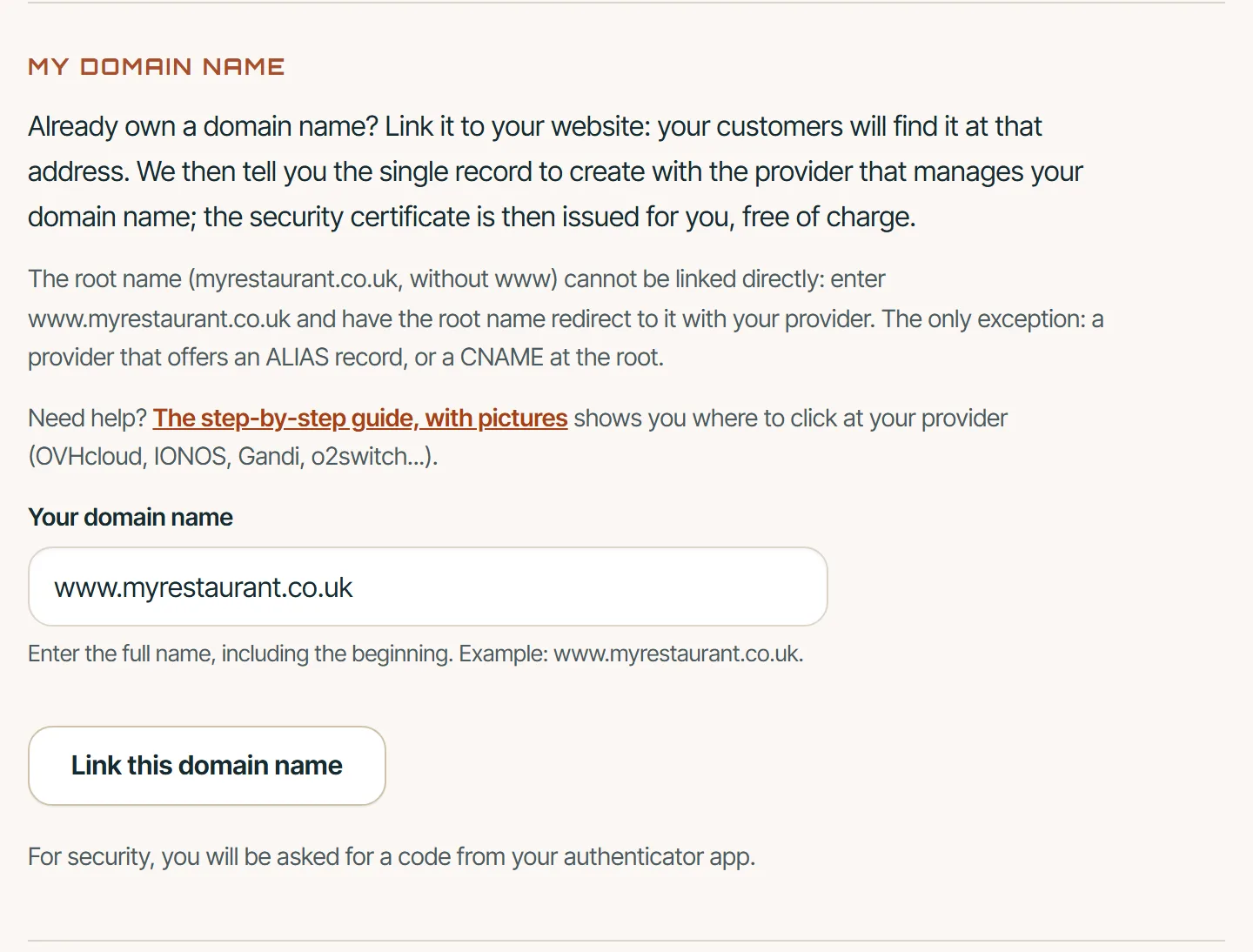
Step 1: enter your name with www. Customer area screenshot, example data. 2. Add the line at your provider
The screen then shows you the line to create. Log in at the provider of your name, open the DNS zone and add a CNAME record with these values:
- Type
CNAME- Name (or host, subdomain)
www- Target (or value, points to)
entree.my-ardoiza.fr
Good to know
The ARDOIZA screen shows the full name (www.myrestaurant.co.uk). At your provider, the name field expects only www: it adds the rest itself. At OVHcloud, Gandi and LWS, add a dot at the end of the target:
entree.my-ardoiza.fr.(otherwise the provider adds your name at the end and the connection fails). The details, provider by provider, are further down.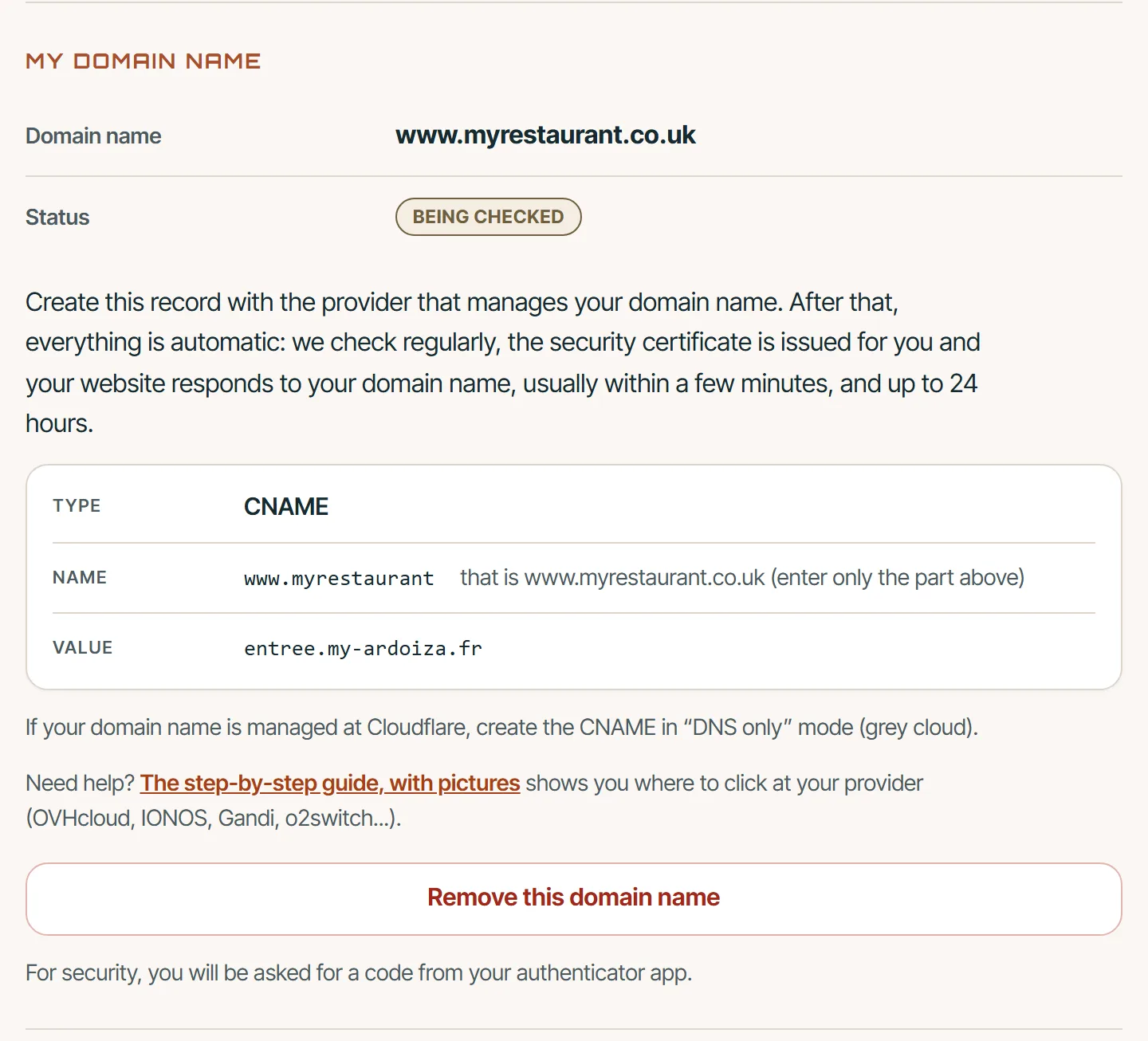
Step 2: the line to create at your provider. Customer area screenshot, example data. General diagram, not a screenshot: each provider presents this form in its own way, with its own words. 3. Wait, everything is automatic
That is all for you: the rest is automatic. We check your name every 10 minutes. The status goes from “Being checked” to “Records in place”, then to “Active”. The security certificate is issued for you, your website responds at your name and an email lets you know.
How long? Usually within a few minutes, and up to 24 hours. Some providers state up to 48 hours. Meanwhile, your website stays open at its usual address.
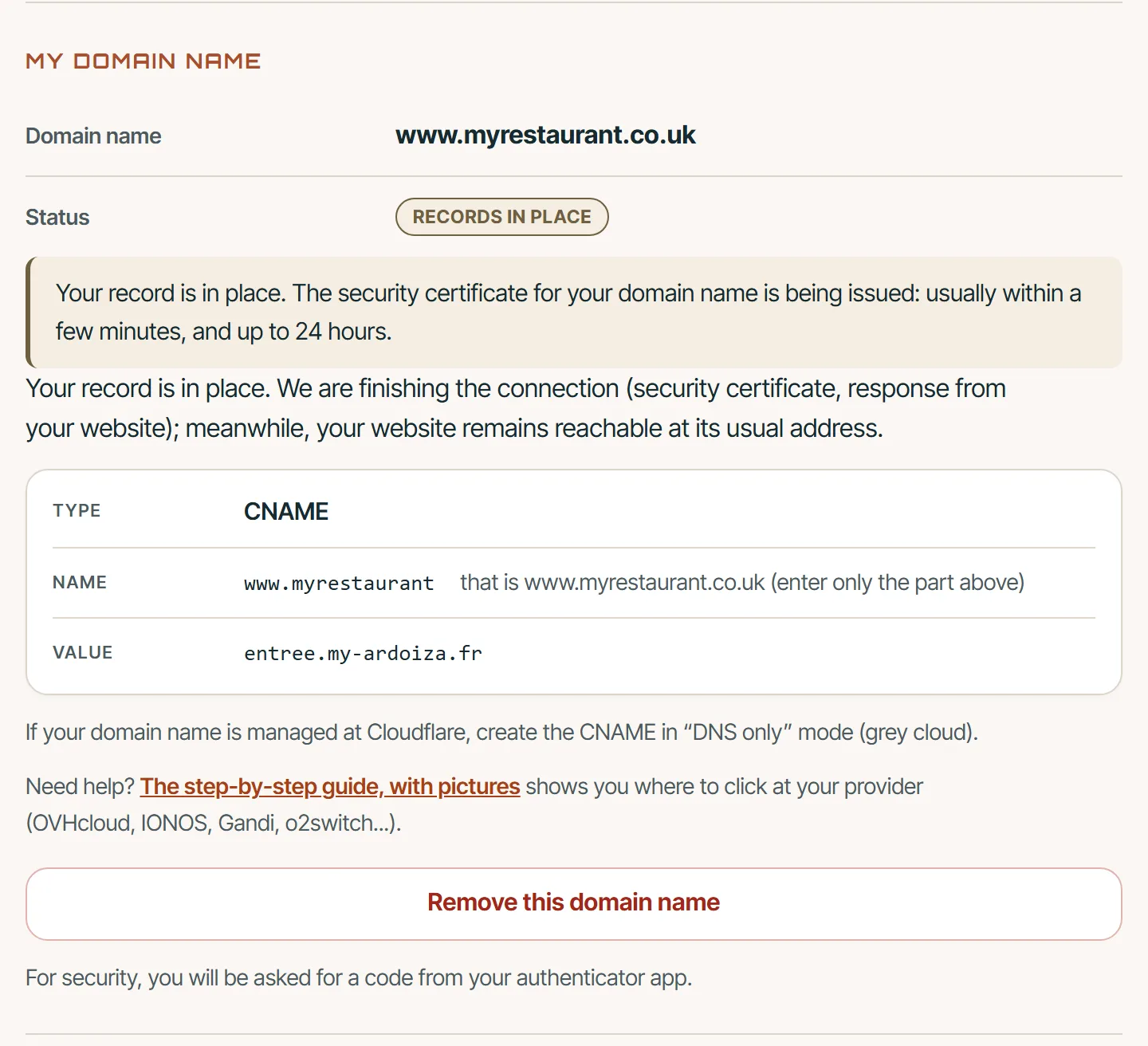
Step 3: the record is found, the certificate is on its way. Customer area screenshot, example data. 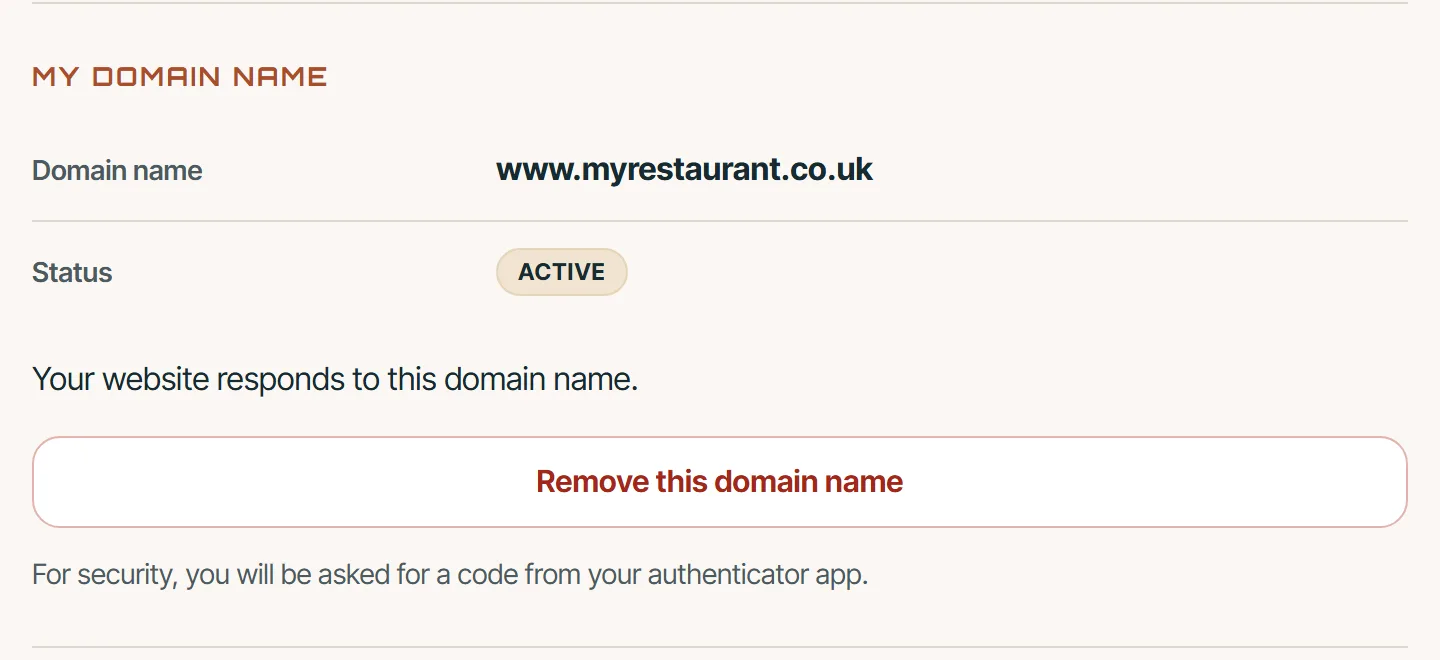
Done: your website responds at your name. Customer area screenshot, example data.
The line to add, in detail
- In the right place. The line is created where the DNS of your name is managed: usually at the provider that bills you for the name every year, sometimes at your web host or at Cloudflare. If nothing changes after 48 hours, write to us: we will tell you where it is managed.
- A single www line. If a www line already exists (type A, AAAA or CNAME), edit or delete it first: a CNAME line cannot live alongside another line with the same name.
- Only www in the name. Writing www.myrestaurant.co.uk in that field would give www.myrestaurant.co.uk.myrestaurant.co.uk.
- The final dot: at OVHcloud, Gandi and LWS, the target is written with a dot at the end (
entree.my-ardoiza.fr.). Elsewhere, without a dot. - Touch nothing else. The MX lines (your email), TXT lines and the root stay as they are. Do not use “reset the zone” or an “automatic setup for an external website”, which would rewrite the whole list.
- At Cloudflare: grey cloud (“DNS only”).
Step by step with your provider
Choose your provider. The paths and field names come from their official help, read on 25 September 2026 without logging in to any account: their screens may have changed since. The pictures in this part are diagrams, not screenshots of their screens. When we quote the labels of a provider's French help, they stay in French, with a translation in brackets.
OVHcloud
Where to go
- Web Cloud
- Domain names
- myrestaurant.co.uk
- DNS zone
- Add an entry
Step by step
- Log in to your OVHcloud Control Panel. Open “Web Cloud”, then “Domain names”, then click myrestaurant.co.uk.
- Open the “DNS zone” tab. Look for the lines whose subdomain is www (type A, AAAA or CNAME). For each one, click the “⋮” button at the end of the line, then “Delete the entry”, and confirm.
- Click “Add an entry” and choose the CNAME type.
- Subdomain:
www. Target:entree.my-ardoiza.fr.with the dot at the end. TTL: leave “By default”. Confirm with the “Add” button.
- Subdomain
www- Target
entree.my-ardoiza.fr.
Watch out
- The final dot of the target is required at OVHcloud. Without it, OVHcloud adds your domain name to the end of the target, and the connection fails.
- OVHcloud points out that a TXT line with the same www subdomain disrupts the CNAME. If you see one, delete it too.
- These settings only count if the DNS zone of your name is managed at OVHcloud. Time stated by OVHcloud: 24 hours at most.
For the address without www
- “Redirection” tab, then “Add a redirection”.
- Domain to redirect: leave it empty. Do not tick “Also redirect”: it would also redirect your www address.
- Choose a visible, permanent redirect (301) to the “Web address”
https://www.myrestaurant.co.uk. If a redirect already exists, tick “Confirm the overwriting of the existing redirection”. - Limit stated by OVHcloud: an address typed with https:// and without www (https://myrestaurant.co.uk) is not redirected. So give out your address with www whenever you can. Time stated: 4 to 24 hours.
Official OVHcloud help
IONOS
Where to go
- Domains & SSL
- myrestaurant.co.uk
- DNS
- ADD RECORD
- CNAME
Step by step
- Log in to your IONOS account and open “Domains & SSL”. Next to myrestaurant.co.uk, open the actions menu (gear or three dots), then “DNS”.
- If a www line of type A, AAAA or CNAME exists, delete it with the bin icon.
- Click the button to add a record (“ADD RECORD” in the IONOS help) and choose CNAME.
- Hostname:
www. Point to:entree.my-ardoiza.fr, without http:// or https://. Save.
- Hostname
www- Point to
entree.my-ardoiza.fr
Watch out
- The IONOS screen has changed over time: the exact path may vary a little. What matters is reaching the “DNS” page of your name.
- IONOS may show a warning: after this CNAME, IONOS email addresses and services no longer work for the www subdomain. Your @myrestaurant.co.uk addresses are not affected.
- These settings only count if your name uses the IONOS name servers. Time stated: immediate at IONOS, up to one hour elsewhere.
For the address without www
- “Domains & SSL”, click myrestaurant.co.uk, “Details” tab, “Adjust Destination” link, then “Domain Forwarding”.
- Type “Arbitrary URL”:
https://www.myrestaurant.co.uk. Choose “HTTP Redirect” (not “Frame Redirect”), then save. - Do not turn on “Domain forwarding for the www. Subdomain”: your www address would redirect to itself, in a loop.
Official IONOS help
Gandi
Where to go
- Nom de domaine
- myrestaurant.co.uk
- Enregistrements DNS
- Ajouter
Step by step
- Open “Nom de domaine” (domain name), click myrestaurant.co.uk, then the “Enregistrements DNS” (DNS records) tab.
- If a www line already exists (type A, AAAA or CNAME), edit it with the pencil or delete it with the bin. Gandi reminds you that a subdomain can only carry a single CNAME.
- Click “Ajouter” (add). Type: CNAME. TTL: keep the suggested value. Nom (name):
www. Valeur (value):entree.my-ardoiza.fr.with the dot at the end. Save.
- Nom
www- Valeur (nom d'hôte cible)
entree.my-ardoiza.fr.
Watch out
- The final dot of the value is required at Gandi.
- These settings only count if your name uses LiveDNS, the Gandi name servers.
- A new line usually counts within a few minutes. An edited line may wait for the duration of the old one (3 hours on average, according to Gandi): lowering the TTL does not speed anything up.
For the address without www
- “Redirection Web” tab, then “Créer” (create).
- Sous domaine (subdomain): leave it empty. Redirect address:
https://www.myrestaurant.co.uk. Type: “Permanente” (permanent), not “Transparente”. Protocol: HTTP first, as Gandi advises; once the redirect is active, edit it to choose HTTP and HTTPS. - Gandi updates the records the redirect needs by itself. It may ask you to validate a certificate by email. Time stated: from a few minutes to more than 3 hours.
Official Gandi help
- How can I change my DNS records? (page in French)
- Web redirection (page in French)
o2switch
Where to go
- cPanel
- Domaines
- Éditeur de zone DNS
- Gérer
- + Ajouter un enregistrement
Step by step
- Log in to your o2switch cPanel. In the “Domaines” (domains) section, open “Éditeur de zone DNS” (DNS zone editor), then click “Gérer” (manage) next to myrestaurant.co.uk.
- If a www line exists (type A, AAAA or CNAME), use “Modifier” (edit) or “Supprimer” (delete) on that line.
- Click “+ Ajouter un enregistrement” (add a record) and choose CNAME. Name:
www(cPanel completes it with your domain name). Record:entree.my-ardoiza.fr. Save (“Save Record” in the cPanel help).
- Name
www- Record
entree.my-ardoiza.fr
Watch out
- The o2switch help does not give the exact labels of its screen: the diagram uses those of the help of cPanel, the software o2switch uses.
- If, once saved, the line shows entree.my-ardoiza.fr.myrestaurant.co.uk, edit it and add a dot at the end of the target:
entree.my-ardoiza.fr.. - If a WordPress website hosted at o2switch answers at www.myrestaurant.co.uk today, your ARDOIZA website will take its place at that address.
- Do not touch the MX or SPF lines: they are the ones for your email.
- Name alone at o2switch, without hosting: o2switch states that this plan has no cPanel and no DNS zone editor. Write to us and we will find the solution with you.
For the address without www
- In cPanel, “Domaines” section, open the “Redirections” tool.
- Type: 301 (permanent). Domain: myrestaurant.co.uk. Destination:
https://www.myrestaurant.co.uk. - For the www option, choose the one that does not redirect www, otherwise your www address would redirect in a loop.
- Leave the root A line in place: the o2switch hosting performs the redirect. According to o2switch, the tool is available with the Grow, Offre Unique Cloud and Pro plans and managed servers.
Official o2switch help
- DNS zone editor (o2switch FAQ) (page in French)
- Web redirects (o2switch FAQ) (page in French)
- Zone Editor (cPanel documentation)
Hostinger
Where to go
- Domains
- Manage
- DNS / Nameservers
- DNS records
Step by step
- In hPanel, open “Domains”, click “Manage” next to myrestaurant.co.uk, then “DNS / Nameservers” and the “DNS records” tab.
- There is often already a www CNAME line pointing to your domain name. If so, edit that line (“Edit”) rather than adding another, and replace its target with
entree.my-ardoiza.fr. If there is a www A line, delete it (bin icon). - If no www line exists: Type CNAME, Name
www(without the domain name, which is added automatically), Target (Points to)entree.my-ardoiza.fr, then “Add Record”.
- Name
www- Target (Points to)
entree.my-ardoiza.fr
Watch out
- The menu and button names quoted here are those of the English Hostinger help: if your hPanel is in another language, they may be translated. What matters is reaching the DNS zone of your name.
- If the Hostinger CDN is on, Hostinger advises turning it off before changing the www CNAME.
- These settings only count if your name uses the Hostinger name servers. Time stated: up to 24 hours.
For the address without www
- Name without Hostinger hosting: “Domains”, “Manage”, “DNS / Nameservers”, “Redirects” tab. Fill in “Redirect from” (myrestaurant.co.uk), “Redirect to” (
https://www.myrestaurant.co.uk) and “Redirect type”, then “Create redirect”. - Name with Hostinger hosting: “Domains”, then “Redirects” in the website dashboard. “Source URL”: myrestaurant.co.uk, “Destination URL”:
https://www.myrestaurant.co.uk, type 301. - The Hostinger help does not say whether this redirect also affects www. Once it is created, check that the www CNAME line still points to
entree.my-ardoiza.fr. Time stated: usually one hour, up to 48 hours.
Official Hostinger help
LWS
Where to go
- Espace client LWS
- Gérer
- Zone DNS
- CNAME
Step by step
- In your LWS customer area, click “Gérer” (manage) next to myrestaurant.co.uk, then open “Zone DNS”.
- If a www line already exists, edit it with the pencil icon (entering the new target) or delete it with the bin: a CNAME line cannot live alongside another line with the same name.
- Choose CNAME, enter
wwwas the name andentree.my-ardoiza.fr.as the value, with the dot at the end, keep the suggested TTL and add the line.
- Name
www- Value
entree.my-ardoiza.fr.
Watch out
- The final dot is required at LWS for an external target: the LWS help asks you to enter the domain name “with a "." at the end”.
- Time stated by LWS: 3 to 4 hours.
For the address without www
- Use the “Redirection Web” tool of the LWS Panel. According to LWS, it exists with the domain plan (name bought alone at LWS) and with LWS Linux hosting; it does not exist with the cPanel, Plesk Windows or VPS plans.
- In that tool, choose “Redirection 301 (Htaccess)”. Domain concerned: myrestaurant.co.uk. Page the domain is redirected to:
https://www.myrestaurant.co.uk. - cPanel, Plesk Windows or VPS plan at LWS: the LWS help does not describe this redirect. Write to us and we will find the solution with you.
Official LWS help
GoDaddy
Where to go
- Portefeuille de domaines
- myrestaurant.co.uk
- DNS
- Ajouter un nouvel enregistrement
Step by step
- Open your “Portefeuille de domaines” (domain portfolio), choose myrestaurant.co.uk (“Paramètres du domaine”, domain settings), then “DNS”.
- There is often already a www CNAME line whose value is @ (GoDaddy calls it “the most common”). If so, click “Modifier” (edit) next to that line, replace @ with
entree.my-ardoiza.fr, then “Enregistrer” (save). - If no www line exists: “Ajouter un nouvel enregistrement” (add a new record), type CNAME, Name
www, Valueentree.my-ardoiza.fr, then save.
- Name
www- Value
entree.my-ardoiza.fr
Watch out
- In the Name, no dot at the start or at the end.
- GoDaddy may ask for an extra check before saving (2-step verification code or a code received by email).
- Time stated by GoDaddy: usually less than an hour, up to 48 hours.
For the address without www
- “DNS”, then “Transfert” (forwarding), “Ajouter un transfert” (add forwarding) and “Domaine”.
- Destination URL: choose https://, then enter
www.myrestaurant.co.uk. Type: “Définitif (301)” (permanent), not forwarding with masking. - GoDaddy then updates and locks the A @ record: this is normal. Do not follow the advice to point the www CNAME to @: your www must keep pointing to
entree.my-ardoiza.fr.
Official GoDaddy help
- Add a CNAME record (page in French)
- Edit a CNAME record (page in French)
- Forward my GoDaddy domain (page in French)
Cloudflare
Where to go
- myrestaurant.co.uk
- DNS Records
- Add record
Step by step
- In the Cloudflare dashboard, open myrestaurant.co.uk, then the “DNS Records” page.
- If a www line already exists, click “Edit”, then “Delete”, and confirm: Cloudflare refuses two lines with the same name.
- “Add record”: Type CNAME, Name
www, Targetentree.my-ardoiza.fr, TTL Auto. Proxy status: “DNS only”, the cloud must be grey. Then “Save”.
- Name
www- Target
entree.my-ardoiza.fr
Watch out
- Orange cloud = it does not work. With the orange cloud, Cloudflare hides the CNAME line and relays your address itself: our check does not find the CNAME, and Cloudflare advises against it for a target at another service.
- The labels above are those of the Cloudflare help and dashboard, in English.
For the address without www
- “Rules”, “Overview”, “Create rule”, then “Redirect Rule” (or the “Redirect from root to WWW” template). Give the rule a name in “Rule name”, for example “root to www”.
- “Wildcard pattern”. Request URL:
http*://myrestaurant.co.uk/*(with the star after http, so that addresses typed without https are redirected too). Target URL:https://www.myrestaurant.co.uk/${1}. Status code: 301. Tick “Preserve query string”, then “Deploy”. - This rule requires the root to go through Cloudflare: the root line (myrestaurant.co.uk) must have the orange cloud (the dashboard may offer to create it). The www line stays grey. If the dashboard does not offer to create that line, write to us.
Official Cloudflare help
Squarespace Domains
Where to go
- Domaines
- myrestaurant.co.uk
- DNS
- Ajouter un enregistrement
Step by step
- In the “Domains” dashboard, click myrestaurant.co.uk, then “DNS”. Squarespace may ask for your password or two-factor code again.
- Delete the www CNAME line of the default records (“Squarespace Defaults”, it points to ext-cust.squarespace.com): hover over it, then click the red bin and confirm.
- In the custom records, click to add a record. Name:
www. Type: CNAME. Priority: empty. Data:entree.my-ardoiza.fr, without / or :. Save.
- Name
www- Data
entree.my-ardoiza.fr
Watch out
- Squarespace warns that without its default records, PayPal Payment Links no longer work.
- Create the www line before the redirect rule: Squarespace states that while a redirect is active, the DNS records of the domain can no longer be changed. To correct or delete the www line later, first delete the redirect rule (“Website”, red bin next to the redirect), then create it again.
- Time stated by Squarespace: 24 to 48 hours.
For the address without www
- Click myrestaurant.co.uk, then “Website”, the domain redirect rules, and add a rule.
- First, delete the A, AAAA, ALIAS or CNAME records placed on @: Squarespace requires it.
- Subdomain: @. Website URL:
www.myrestaurant.co.uk(without http://). In the advanced options, choose the permanent redirect (301) and keep the paths. Do not add www as a redirected subdomain. If an SSL option appears, leave it on.
Official Squarespace Domains help
Wix
Where to go
- Domaines
- Plus d'actions
- Gérer les enregistrements DNS
- CNAME (Alias)
Step by step
- In your Wix account, open “Domains”, click the more actions icon next to myrestaurant.co.uk, then manage the DNS records.
- “CNAME (Alias)” section: if a www line exists, hover over it and click “Edit”; otherwise, add a record.
- Host name:
www. Value:entree.my-ardoiza.fr. Save, then save the changes.
- Host Name
www- Value
entree.my-ardoiza.fr
Watch out
- If Wix refuses to change the www line because your name is still connected to a Wix website, write to us: the Wix help we read does not describe this case.
- Time stated by Wix: up to 48 hours.
For the address without www
- The Wix help describes no redirect from the root to another address. At Wix, link only www and give out your address with www.
- For myrestaurant.co.uk to lead to your website too, you need to transfer your name to another provider (Wix states that the name servers of a Wix domain cannot be changed).
Official Wix help
Another provider
- Look for “DNS zone”, “DNS”, “DNS records” or “Manage DNS” in your provider's account.
- Add a record of type CNAME: in the name (or host, subdomain),
www; in the target (or value, “points to”),entree.my-ardoiza.fr. - If the saved line shows entree.my-ardoiza.fr.myrestaurant.co.uk, add a dot at the end of the target.
- If in doubt, write to us with the name of your provider: we will guide you.
What about the address without www?
Only one name is linked to your website: we advise the address with www. For myrestaurant.co.uk (without www) to lead to your website too, ask your provider to redirect it to https://www.myrestaurant.co.uk, with a permanent (301) redirect. How to do it is in each provider's section, above.
Never tick the option that also redirects www (“Rediriger aussi” at OVHcloud, the www option at IONOS, Squarespace or o2switch): your www address would be diverted or would loop.
For those at ease: if your provider offers an ALIAS record (or a CNAME at the root, like Cloudflare), you can link myrestaurant.co.uk directly. Enter that name without www in the card; the customer area recognises it when it leads to the same addresses as entree.my-ardoiza.fr. In that case, it is the www address that must redirect to it.
It does not work?
The “My domain name” card always tells you where you stand. Here are the main messages and what to do.
| What you see in the card | What to do |
|---|---|
Being checked We cannot find the CNAME record yet. A DNS change usually takes a few minutes, and up to 24 hours. | Wait. If nothing changes after 24 hours (48 hours at some providers), read the line to add again: line created in the right place, only www in the name, no other www line. At Cloudflare, grey cloud. After 72 hours, the status changes to “Error” with the same message: we keep checking, so create or correct the line. |
Error Your domain name does not point to the right target: an old line (type A or AAAA) or a redirect may still be in place, or the CNAME target is wrong. Correct it with the provider that manages your domain name. | Your www address leads somewhere other than ARDOIZA. First check that no other www line remains (type A or AAAA) and that no www redirect is ticked at your provider; delete them. If the CNAME line exists, its target must be exactly entree.my-ardoiza.fr (with the final dot at OVHcloud, Gandi and LWS: entree.my-ardoiza.fr.). |
This domain name is not valid. Enter a full name, for example www.myrestaurant.co.uk. | Enter only the name, with www, without https:// or a / at the end: for example www.myrestaurant.co.uk. |
This domain name cannot be used. Enter a domain name that belongs to you. | This name cannot be linked (an ARDOIZA address, or a name that contains ARDOIZA). Enter your restaurant's domain name. |
Your own domain name is included in the Pro plan. | A domain name of your own is part of the Pro plan: you can change plan in My plan. |
This name is the root of your domain: most providers do not accept a CNAME record there. Enter www followed by your domain instead, for example www.myrestaurant.co.uk, and have the root redirect to it with your provider. If your provider offers an ALIAS record, or a CNAME at the root, you can use that too. | You entered the name without www. Remove it, then enter www.myrestaurant.co.uk (see the address without www). |
Records in place Your record is in place. The security certificate for your domain name is being issued: usually within a few minutes, and up to 24 hours. | All is well on your side: nothing to do, we are finishing. An email lets you know at the end. |
A CAA record on your domain name prevents the security certificate from being issued. Allow letsencrypt.org, pki.goog and ssl.com, or remove that record, with your provider. | Rare. At your provider, a CAA line limits the authorities allowed to issue a certificate. Add letsencrypt.org, pki.goog and ssl.com to it, or delete it. If in doubt, write to us. |
Our content delivery network has not been able to validate your domain name yet. Also add the additional records shown below. | Also add at your provider the lines shown in the second table of the card, exactly as they are. |
This domain name is already linked, or was recently linked, to another ARDOIZA website. If it belongs to you, write to us from the Help section. | This name is already used on another account. Do not create the line: write to us first, we will check with you that it belongs to you. |
Your domain name no longer points to your website. Restore the CNAME record with the provider that manages your domain name. | The www line has disappeared or changed at your provider (renewal, change of web host...). Within ten minutes, your website went back to its address ending in my-ardoiza.fr, so that it stays reachable, and an email let you know. Restore the line: your name will be linked again automatically. |
The domain name could not be verified in the time allowed. Enter it again once the CNAME record is in place. | The line was not found within the time allowed. Create it, then enter your name again in the card. |
Your domain name responds, but not from your ARDOIZA website. Check that no other service (redirect, relay) sits in front of it, then wait: we try again automatically. | A redirect or another service sits in front of your www address (often a www redirect ticked by mistake, or the Cloudflare orange cloud). Remove it. |
The DNS check could not be done. We try again automatically. Your domain name is not responding over HTTPS at the moment. We try again automatically. The security certificate of your domain name is not valid at the moment. We try again automatically. | Usually, nothing to do: we try again automatically. If the message stays for more than 24 hours, check that no www redirect is ticked at your provider (at Cloudflare: grey cloud), then write to us. |
Connecting your domain name is temporarily blocked on our side. Our team has been notified. | Nothing to do on your side: our team has been notified and takes over. |
Your own domain name is included in the Pro plan: your website responds at its usual address again. | Your account no longer has the Pro plan, and your website has gone back to its address ending in my-ardoiza.fr. To link your name again, take the Pro plan again in My plan; otherwise, delete the www line at your provider. |
Removing your domain name
- In the “My domain name” card, click “Remove this domain name”. Your website immediately goes back to its address ending in my-ardoiza.fr.
- Then remember to delete the www line at your provider.
- If you leave the Pro plan, your name is no longer linked and your website goes back to its address ending in my-ardoiza.fr. Then delete the www line at your provider.
- At Squarespace, first delete the redirect rule of the root: while it is active, the www line cannot be deleted.
Need help?
Write to us from My requests, in the help section of your customer area, giving your domain name and the name of your provider. We will look into it with you.
We will never ask you for the password or codes of your account at your provider: do not send them to anyone.